Most Netflix problems come down to four things: a connection that cannot hold the stream, stale data stored in the Netflix app or browser, a limit on your account — streams, Household or downloads — or a fault on Netflix’s own side. Work through the fixes below in that order, cheapest and most likely first. When Netflix fails it usually leaves a code on screen — NW-3-6, UI-800-3, M7111-5059, TVQ-PM-100 — and that code tells you which bucket you are in, so note it before you restart anything.
Netflix is the most popular on-demand entertainment streaming website. You can enjoy a comprehensive range of TV shows and movies of your choices with Netflix. However, some users are complaining that sometimes they see Netflix Error Code on their screen and Netflix has trouble streaming the content. There are several other issues with its speed and performance commonly experienced by many users.
In the article, we are going to show you the Netflix problems and errors and tell you how to fix them. Our guideline will surely help you to speed up Netflix streaming.
Quick Diagnosis: Symptom, Likely Cause, Fix
| Symptom | Likely cause | Fix |
|---|---|---|
| Buffering, or the picture goes soft | Connection too slow on that device | Fix 2 |
| “There is a problem connecting”, or a NW or UI code | Network path or stored device data | Fix 3, Fix 8 |
| Code starting with M7, F7 or S7 | Browser settings, extensions or DRM | Fix 4, Fix 10 |
| “You seem to be using an unblocker or proxy” | VPN, proxy or smart DNS | Fix 11 |
| “Too many people are using this account” | Stream limit or Household | Fix 5 |
| Black screen with audio | Browser data, HDMI or HDCP | Fix 7, Fix 9 |
Netflix Error Codes and What They Actually Mean
| Code | Group | What it means | Fix |
|---|---|---|---|
| NW-2-5 / NW-3-6 | Network | DNS, VPN or proxy settings | Fix 3 |
| aip-701 | Network | Connection is blocking the device | Fix 3 |
| UI-800-3 | App data | Stored data needs refreshing | Fix 8 |
| TVQ-PM-100 | App data | Stored data is stopping playback | Fix 8 |
| TVQ-PB-101 | Device | Title will not play here | Fix 8 |
| M7111-1331 | Navegador | Extensions, or no browser viewing on the plan | Fix 4 |
| M7111-5059 / F7111-5059 | Navegador | Proxy detected, or DRM blocked | Fix 4, Fix 11 |
| M7121-1331-P7 | Navegador | Unexpected error, DRM or extensions | Fix 4 |
| M7037-1111 | Network | “You seem to be using a VPN or proxy” | Fix 11 |
| M7701-1003 | Navegador | Chrome protected content or Widevine | Fix 4 |
| F7701-1003 | Navegador | Firefox DRM, private browsing, media pack | Fix 4 |
| S7701 / S7701-1003 | Navegador | Safari private browsing | Fix 4 |
| NSES-500 | Netflix | Temporary browser or server failure | Fix 1 |
| 10013 | Cuenta | Region or account check failed | Fix 5, Fix 11 |
| E109 | Navegador | Browser is no longer supported | Fix 10 |
Fix 1: Check Whether Netflix Is Down Before You Change Anything
This is free and takes thirty seconds, so do it first. Nothing you do locally beats an outage.
- Open Netflix’s streaming status page at help.netflix.com and check its support account on X.
- Try a second device and a second network; a phone on cellular data is quickest.
- Run fast.com, which measures the route straight to Netflix.
- Downdetector shows report spikes early — a signal, not confirmation.
During an incident, wait 15 to 30 minutes and leave your settings alone.
Fix 2: How to Tackle Netflix Streaming Problems
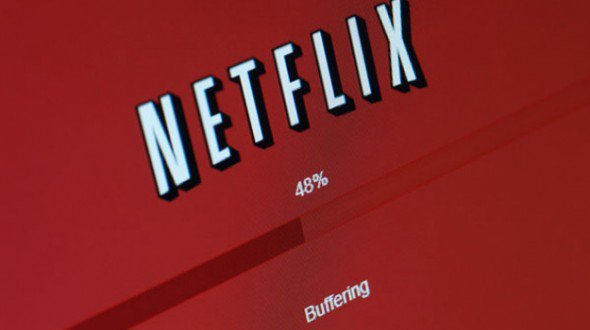
An intermittent or weak internet connection may result in poor video quality. If you experience buffering while watching videos on Netflix, you may use the following tips to fix the problems.
- You need to stop all downloads immediately that might be performing on devices.
- You can restart your streaming device.
- Restarting modem or router may help.
- Try to move near to the router.
- Instead of using a wireless connection, try using Ethernet cable.
A restart re-runs DHCP and rebuilds the route to Netflix’s servers: unplug the device for 30 seconds, then the modem, then the router.
| What you are watching | Sustained speed Netflix recommends |
|---|---|
| Standard definition or 720p | 3 Mbps |
| Full HD 1080p | 5 Mbps |
| Ultra HD 4K | 15 Mbps |
Measure on the failing device — a 200 Mbps plan means nothing if the TV holds 4 Mbps.
Fix 3: How to Fix Connection Problems?
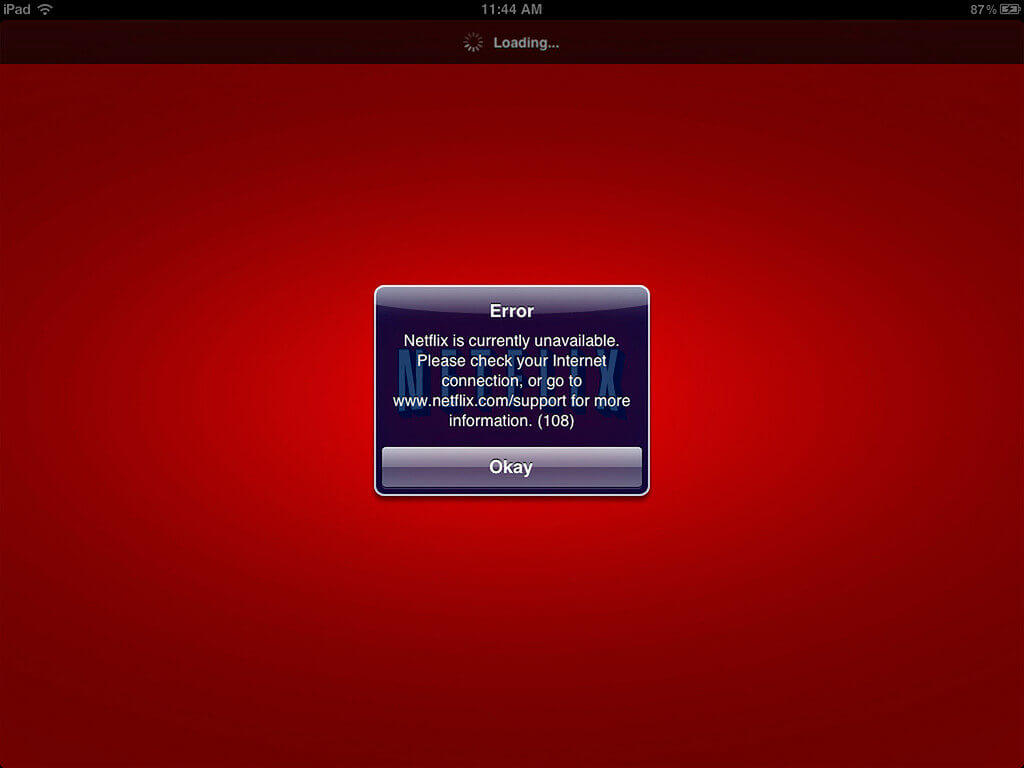
Sometimes you may not log on to Netflix due to the problem in connection. Usually, the Netflix error codes which start with NW, AIP or UI are a true indication of connection issues. This will result in a message that there is a problem connecting to Netflix.
If this happens, you need to make sure that the streaming device has properly been connected. You can easily check the problem simply by opening the web browser. But if the problem is consistent, update your Netflix version.
Then work through these:
- Power-cycle the network: unplug the modem and router for 30 seconds, plug the modem in, wait for the lights to settle, then the router.
- Restore default connection settings. Custom DNS, a proxy or a VPN sit behind most NW-3-6 and aip-701 errors.
- Check the device is still supported, then call your ISP with the fast.com result.
Fix 4: Fix Browser, Extension and DRM Errors
Codes beginning with M7, F7 or S7 mean the browser, not your account: Netflix protects its catalogue with DRM, and anything that breaks the protected-media component stops playback.
- Open a private window. Extensions are disabled there, so if Netflix plays, one of them is the cause; turn them off one at a time, starting with VPN, ad blocker and privacy tools.
- Update the browser, then its DRM component: in Chrome, open chrome://components and check Widevine Content Decryption Module; in Firefox, confirm that Play DRM-controlled content is enabled.
- Leave private browsing — S7701-1003 on Safari and F7701-1003 on Firefox are often nothing more. Clear Netflix site data at netflix.com/clearcookies, and install the Media Feature Pack on Windows N.
Fix 5: How to Fix Netflix Error Caused By Too Many Users?
Too many users error clearly shows that your Netflix password has been shared with other people. There is always that restriction for a number of people using the Netflix account. When a maximum number is reached, Netflix shows you the error message.
You can fix it by;
- Log into your Netflix account once again.
- Select the option by signing out the devices.
If the problem remains the same, it is the time to change your password.
How many screens you get depends on the plan:
| Plan | US price | Streams | Descargas | Extra members |
|---|---|---|---|---|
| Standard with ads | $8.99 | 2 | 2 devices | Not available |
| Standard | $19.99 | 2 | 2 devices | 1, $7.99 with ads or $9.99 ad-free |
| De primera calidad | $26.99 | 4 | 6 devices | Up to 2, $7.99 with ads or $9.99 ad-free |
A Netflix account is for one household, which Netflix works out from the devices on the internet connection at your main viewing location; someone who lives elsewhere needs an extra member slot or their own account. Household members can still travel with I’m Traveling on a TV or Watch Temporarily on a phone. To clear every session, sign in at netflix.com and use Sign out of all devices.
Fix 6: How to Reset or Change Your Netflix Password?
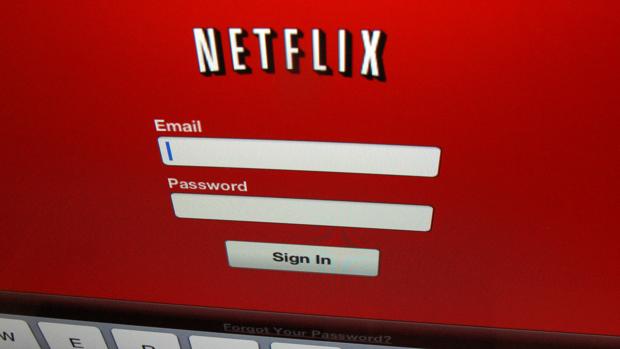
By using your Netflix account, you can change or reset your Netflix password.
You can do this by;
- Click on your Netflix account. Select the option “change password”.
- The dialogue box will ask you about your current password, while the second and third row will confirm your new password.
- Once you have entered the new password, click on the save option to change or reset the password.
Changing the password ends every session on every device, which is why it clears a too-many-users error — but you will sign in again on your own TV. If you have lost it, reset it from the sign-in screen.
Fix 7: When Black Screen Appears on the Screen?

One of the common problems that Netflix users face is the appearing of a black screen. It usually happens due to the usage of Safari, Firefox, Edge, or Chrome on a Windows PC. When the black screen appears on the screen, use the following method;
- Either clear your cache of the browser or try using another browser.
- Another way to resolve this problem is by clearing Netflix cookies.
- If the problem reaches its peak, this is the time to uninstall the browser or the Netflix app. Once you have done so, reinstall it and check again.
Netflix retired Microsoft Silverlight and now plays through HTML5 in a supported browser, so the browser or the app is the only thing worth reinstalling; switch hardware acceleration back on. If the screen is black but audio plays, go to Fix 9.
If you are still unable to resolve the Netflix streaming issues, you can contact Netflix support staff via chat or phone call.
Fix 8: Refresh the Data Netflix Has Stored on Your Device
UI-800-3, UI-113, TVQ-PM-100, 5.7 and -11800 all mean the same thing: data cached on the device has gone stale, usually after an app update.
- Restart properly: turn the device fully off, unplug it, wait 15 seconds, then power it back on.
- Sign out and back in from the Netflix menu under Get Help. If you cannot reach it, press Up, Up, Down, Down, Left, Right, Left, Right, Up, Up, Up, Up on the remote to reach the deactivate option.
- Clear the app data, or — on Roku and Apple TV, which have no cache control — delete and reinstall the app.
Fix 9: Check the HDMI Cable, HDCP and the Display Path
A black screen with audio is a video-path problem more often than a Netflix problem: HDCP is the protection handshake between device and TV, and when it fails, protected titles go dark while menus play on.
- Confirm the TV is on the right input, then reseat the HDMI cable at both ends.
- Try another HDMI port and cable; old cables fail HDCP negotiation often.
- Take an AV receiver, soundbar or switch out of the chain, then unplug the TV for a minute and bring it back up.
Fix 10: Use a Browser and Operating System Netflix Supports
Netflix supports Chrome, Edge, Firefox, Opera and Safari on a computer, and drops older builds quietly — E109 is what you get when a browser has fallen off the list.
| Platform | Requirement | Browser minimum |
|---|---|---|
| Windows | Windows 10 or 11 | Edge 118, Chrome 117, Firefox 111, Opera 92 |
| Impermeable | macOS 10.15.5 or later | Safari 14, Chrome 117, Firefox 111, Opera 92 |
| Chromebook or iPad | ChromeOS 76 or later, iPadOS 14 or later | Chrome 117, Safari 14 |
Edge and Chrome on Windows can reach 2160p where the hardware allows, Firefox and Opera top out at 1080p, and Safari 15 or later is needed for live events. Windows 8 and 8.1 play only in standard definition.
Fix 11: Turn Off Your VPN, Proxy or Unblocker
“You seem to be using an unblocker or proxy”, shown with code M7037-1111, means Netflix sees your traffic arriving from somewhere else.
- Turn off the VPN on the device and at the router; some antivirus suites ship with one switched on. Disable smart DNS and proxy extensions, then restore default settings.
- Open fast.com, choose Show more info, and compare the country next to Client with where you are; if it is wrong with no VPN running, give your ISP that country and IP address.
- If you need the VPN for other traffic, route Netflix outside it. Netflix does not support VPN use for live events or the ad-supported experience.
Fix 12: Downloads, Offline Limits and Watching While You Travel
Downloads are a separate allowance from streaming, and they explain why a working account refuses to save a title.
- Standard with ads allows downloads on 2 devices, capped at 15 titles per device monthly; Standard also allows 2, and Premium allows 6.
- A saved title expires once you press play or its licence runs out, and some carry a studio-set limit. Check storage too: a half-written download shows up as error -103 on iPhone and iPad.
- Downloads are tied to the account’s country, so travelling abroad can stop them playing.
Preguntas frecuentes
1. How do I know whether Netflix is down or the problem is mine?
Check help.netflix.com, test a second device and a second network, and run fast.com. Failing everywhere points at Netflix; failing on one device points at it.
2. What does Netflix error code NW-3-6 mean?
The device cannot reach Netflix through the current network path, usually because of DNS, a VPN or proxy, or a custom setting. Restart the modem and router, then restore defaults.
3. Why does Netflix say too many people are using my account?
Your plan’s stream limit has been reached: two screens on Standard with ads and Standard, four on Premium. Stop playback elsewhere or sign out unused devices, then wait a few minutes.
4. Can I share Netflix with someone who lives in another house?
Only with a paid extra member slot, available on Standard and Premium but not on Standard with ads. The extra member gets their own login and watches on one device at a time.
5. Why is my Netflix screen black but the sound still plays?
On a TV that means the video path — the HDMI input, the cable, an AV receiver in the chain, or HDCP. On a computer it is usually browser data, private browsing or DRM.
Conclusión
Work the fixes in order and Netflix almost always comes back: check whether Netflix is down, test the connection against 3, 5 and 15 Mbps on the failing device, power-cycle the modem and router, then clear the data the app or browser has stored. That costs nothing and covers the buffering and most codes on screen.
Then match the code to its layer. NW and aip codes are the network, UI and TVQ codes are stored device data, M7, F7 and S7 codes are the browser and its DRM, and a too-many-users or household message is your plan rather than a fault. Signing out every device and resetting the password clears the account-level problems.
Keep the whole code, including any suffix, because UI-800-3 or TVQ-PB-101 with a bracketed extension can point somewhere different from the plain code. Failing that, Netflix support is reachable by chat or phone, and your ISP can check the route when fast.com shows a country or speed that does not match your address.
¿Qué tan útil fue esta publicación?
¡Haz clic en una estrella para valorarlo!
Calificación promedio / 5. Recuento de votos: